
AI is quickly becoming part of everyday teaching. The right AI tools for teachers can reduce lesson-preparation time, turn ideas into classroom materials, and make complex topics easier to explain.
I compared five practical AI tools: Monsha, NotebookLM, ChatGPT, Canva, and Gamma.
| AI Tool | Best For | Key Use Cases | Ideal For |
|---|---|---|---|
| Monsha | Lesson planning | Lesson plans, worksheets, quizzes, presentations, differentiation | Teachers who want an all-in-one teaching workflow |
| NotebookLM | Research & source analysis | PDFs, notes, summaries, study guides, source-based questions | Teachers working with textbooks and research materials |
| ChatGPT | General teaching support | Lesson ideas, explanations, quizzes, worksheets, rubrics, brainstorming | Teachers who need a flexible AI assistant |
| Canva | Visual content | Presentations, posters, infographics, diagrams, classroom graphics | Teachers who want engaging educational visuals |
| Gamma | AI presentations | Slide decks, lesson outlines, structured presentations | Teachers who need presentation drafts quickly |
The table gives you the short version. The sections below explain how I would actually use each tool and where each one may not be the best fit.
Monsha: An AI Teaching and Lesson-Planning Assistant
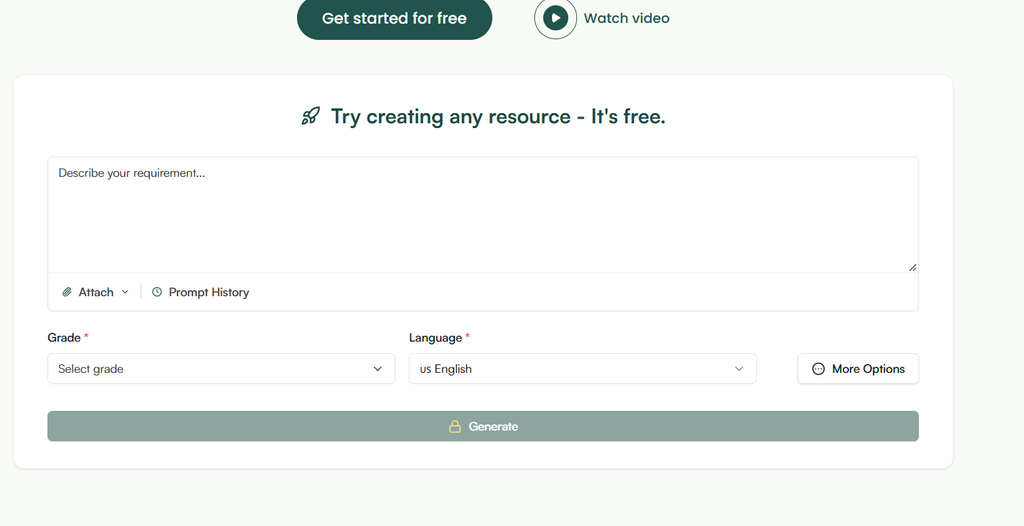
If lesson planning, worksheets, quizzes, and presentations are all eating into the same limited preparation time, Monsha takes an interesting all-in-one approach. Instead of treating AI as a general chatbot, it is built around teaching workflows.
What Is Monsha?
Monsha is an AI-powered teaching and lesson-planning assistant designed specifically for educators. It can take a topic, learning objective, source file, URL, or other teaching material and turn it into structured classroom resources.
What stood out to me is the connected workflow. A teacher can move from curriculum and lesson planning to worksheets, questions, presentations, reading passages, and differentiated materials without starting from scratch each time.
Monsha also supports standards, grade levels, instructional styles, and different student needs. That makes it closer to a digital teaching assistant than a basic text generator.
For anyone researching AI teacher assistants, this is a useful example of how specialized AI can reduce repetitive preparation work. I also recommend exploring our guide to AI teacher assistants for a broader look at this category.
How to Create Complete Lesson Plans with Monsha
The basic workflow is simple. Start with a subject, topic, learning objective, curriculum requirement, or existing teaching material.
From there, Monsha can build a structured lesson plan containing objectives, key concepts, materials, activities, assessment ideas, and differentiation strategies.
For example, instead of typing, “Create a science lesson,” I would give it something more specific:
“Create a 45-minute Grade 7 lesson on photosynthesis. Include two learning objectives, a five-minute introduction, teacher explanation, a group activity, three participation questions, guided practice, and an exit ticket.”
The more useful the context, the more useful the first draft becomes.
You can then adjust the lesson for different grade levels, reading levels, languages, or learning needs. This is especially useful when one lesson needs several versions.
Practical takeaway: Use Monsha when lesson planning is the main bottleneck and you want the plan, activities, and supporting resources connected.
How to Create Presentations with Monsha
Monsha can also turn lesson ideas or existing materials into presentation content. You can start with a lesson topic or source and generate structured slides with explanations, examples, and classroom activities.
This can save the awkward middle step where a teacher has a good lesson plan but still has to spend an hour converting it into slides.
I would still edit the presentation before class. AI-generated slides can be technically correct but may contain too much text or miss the visual style that works for a particular class.
Worksheets and Assessments with Monsha
This is another area where Monsha feels practical. Its tools can generate worksheets, assessment questions, quizzes, reading passages, graphic organizers, and other classroom resources.
You can ask for multiple-choice questions, fill-in-the-blank exercises, matching activities, comparison tasks, discussion prompts, or practice questions.
For example, after creating a lesson about the water cycle, you could generate:
- A beginner worksheet
- A standard practice sheet
- A challenge worksheet
- Five multiple-choice questions
- Three short-answer questions
- An exit ticket
- An answer key
The important part is review. I would never hand an AI-generated assessment directly to students without checking the answers, wording, difficulty, and connection to the learning objective.
Practical takeaway: Monsha is particularly useful when one lesson needs several supporting resources rather than just a single document.
Adapt, Translate, and Export Materials
Differentiation is one of Monsha’s stronger practical features. Materials can be translated, adjusted for grade level, adapted to reading level, or reshaped around different learning needs.
Resources can also be exported into formats such as Google Docs, DOCX, and PDF, with additional integrations and export options depending on the resource.
Who Should Use Monsha?
I would look at Monsha first if the goal is to streamline the full teaching-preparation workflow. It makes the most sense for teachers who regularly create lesson plans, worksheets, assessments, presentations, and differentiated resources.
NotebookLM: Research and Study Assistant for Teachers
NotebookLM fills a different role. Rather than being primarily a lesson generator, it works as a source-based research and study assistant.
What Is NotebookLM?
The main idea is simple: give NotebookLM your source material, then ask questions about it.
For teachers, those sources might include textbooks, PDFs, research papers, curriculum documents, notes, articles, or other approved materials. This creates a useful workflow when preparation starts with a large amount of information.
Instead of reading through a long document every time you need one detail, you can use the notebook to find concepts, summarize information, and explore connections within your sources.
How Teachers Can Use NotebookLM
Imagine preparing a lesson from a 100-page curriculum document. You could add the document to NotebookLM and ask questions such as:
- What are the main concepts in this unit?
- Which ideas should students understand first?
- Summarize the section on climate change.
- Create five discussion questions from these sources.
- Compare the two explanations of this topic.
- What vocabulary should I introduce before the lesson?
This source-first approach is useful because the conversation is grounded in the materials you provide rather than beginning with a completely blank prompt.
Create Study and Teaching Materials
Once the source material is organized, it can help produce study guides, questions, summaries, and other preparation materials.
I see the biggest value here as a bridge between research and teaching. Instead of asking AI to invent a lesson from general knowledge, you can first organize the approved source material and then use that material to shape your preparation.
For related student-focused workflows, see our guide to AI for students.
Why It Helps Teachers
NotebookLM can reduce the time spent searching through multiple documents. It can help organize information, identify important concepts, and make large source collections easier to work with.
Its biggest advantage is therefore not “write my whole lesson.” It is “help me understand and use my source material faster.”
Practical takeaway: Use NotebookLM when your teaching task starts with documents, research, textbooks, or other source-heavy material.
ChatGPT: A Flexible AI Assistant for Teachers
ChatGPT is the most flexible option in this list. It can help with brainstorming, lesson planning, explanations, writing, assessment ideas, classroom communication, and many other tasks.
What Is ChatGPT?
ChatGPT is a general-purpose AI assistant rather than a tool built only for teachers. That flexibility is its biggest strength.
I can use the same basic workflow to brainstorm a history activity, rewrite a science explanation, create discussion questions, draft a parent announcement, or turn a learning objective into a lesson outline.
For readers interested in a broader comparison, our article on ChatGPT vs Gemini explores how ChatGPT compares with another major AI assistant.
How to Create Lesson Ideas and Explanations
ChatGPT is particularly useful when you know what students need to learn but are unsure how to present it.
You can ask it to brainstorm lesson hooks, explain difficult concepts, create analogies, suggest classroom activities, or rewrite an explanation for a different reading level.
For example:
“Explain Newton’s third law to a 12-year-old using a skateboard example, then create three questions that check whether students understand the idea.”
You can also ask for several teaching approaches rather than accepting the first answer. That turns ChatGPT into a brainstorming partner instead of a content vending machine.
Create Worksheets, Quizzes, and Assessments
ChatGPT can generate multiple-choice questions, short-answer questions, homework ideas, discussion prompts, rubrics, and assessment criteria.
It can also create a complete lesson resource pack. The different materials can share the same learning goal, which makes the workflow more consistent.
Other Useful Teacher Tasks
The use cases extend beyond teaching content. ChatGPT can help draft classroom announcements, parent emails, project ideas, instructions, feedback templates, and brainstorming prompts.
It can also help transform existing material into a simpler or more structured version.
Useful ChatGPT Prompt for Teachers
Create a 45-minute lesson for [grade] students on [topic]. Include two learning objectives, a short warm-up, teacher explanation, one interactive activity, five discussion questions, a formative assessment, an exit ticket, and two differentiation options. Keep the language age-appropriate and flag anything I should fact-check.
Review AI-Generated Content
This step is essential. AI can produce incorrect information. Fact-check claims, check age appropriateness, compare the material with the curriculum, and make sure examples fit the class.
Practical takeaway: Choose ChatGPT when you want one flexible assistant that can support many different teaching and administrative tasks.
Canva: Design Better Educational Slides and Visuals
Canva is different from the other tools because its main strength is visual communication. Its AI features can help teachers create presentations and transform ideas into more polished classroom materials.
What Is Canva?
Canva is a visual design platform with AI features that can help create presentations, posters, infographics, worksheets, classroom graphics, and other visual resources.
The benefit is simple: good information can be easier to understand when it is presented clearly.
How to Create Educational Presentations
You can start with an idea and generate a presentation structure, then customize the design.
I would use AI for the first draft, then adjust the slides to match the lesson. Remove unnecessary text, enlarge important ideas, add diagrams where they help, and make sure every visual has a teaching purpose.
Create Classroom Visual Materials
Canva is also useful for posters, infographics, educational graphics, classroom instructions, and visual explanations.
For example, a teacher explaining the water cycle could turn a text-heavy explanation into a labeled diagram. A history teacher could create a timeline. A language teacher could make vocabulary cards.
You can also explore related AI video tools when a lesson would benefit from short visual content.
Who Should Use Canva?
Canva is a strong fit for teachers who care about presentation quality but do not want to become graphic designers.
It is especially useful when the content is easier to understand through diagrams, timelines, icons, images, or visual summaries.
Practical takeaway: Use Canva when the teaching problem is not just “What should I say?” but “How can I show this clearly?”
Gamma: Create Presentations Quickly with AI
Gamma focuses heavily on turning ideas and text into structured presentations. Its card-based approach lets users generate and then edit presentation content instead of designing every element manually.
What Is Gamma?
Gamma is an AI presentation tool that can turn an outline, topic, or existing text into a visually organized presentation.
For teachers, this can be useful when the lesson content already exists but the presentation still needs to be created.
How to Create a Presentation with Gamma
Start with a clear prompt such as:
Create a 12-section classroom presentation explaining the solar system to Grade 6 students. Use simple language, one key idea per section, examples, discussion questions, and a final knowledge check.
Gamma can create an initial structure, after which you can edit the content and layout.
I would treat the first version like a rough classroom storyboard. Check the order of ideas, remove unnecessary sections, add examples that fit the class, and rewrite anything that sounds too generic.
When Should Teachers Use Gamma?
Gamma makes the most sense when presentation preparation time is limited.
It can turn a lesson outline into a starting presentation quickly, which leaves more time for checking the actual teaching content.
This fits a wider AI content creation workflow: generate the structure first, then spend human attention on accuracy, teaching value, and customization.
Export and Share Presentations
After reviewing the presentation, Gamma can export content in formats including PDF, PowerPoint, and PNG. Teachers should still check the exported version for formatting issues before using it in class.
Practical takeaway: Use Gamma when you already know what you want to teach and need a presentation draft quickly.
What I Learned From Comparing These AI Tools for Teachers
After comparing these five tools, I would not think about them as five competitors doing exactly the same job. They solve different parts of the teaching workflow.
Monsha is focused on lesson planning and classroom resources. NotebookLM is strongest when you need to work through source material. ChatGPT is the flexible general-purpose assistant. Canva helps turn ideas into visual teaching materials, while Gamma is useful for quickly building presentation drafts.
The biggest lesson is that AI works best as a second pair of hands, not as the teacher.
Give it a clear objective, provide useful context, ask for a first draft, and then apply professional judgment. That approach can save preparation time without giving up control over what students actually learn.
For anyone exploring the best AI tools for teachers, that is the workflow I would focus on: use AI to reduce repetitive work, then spend the saved time improving the parts of teaching that matter most.